Start selling
Set up your payment account to collect payments in person and through your Online Shop.
Overview
Once your shop’s pass and program are set up, you can enable payments from your merchant dashboard. You’ll complete your business verification, add your payout details, and choose how customers can pay.
Payments are powered by Stripe. You manage payment settings, transactions, refunds, and payouts from within Worthify.
1. Open your payment account
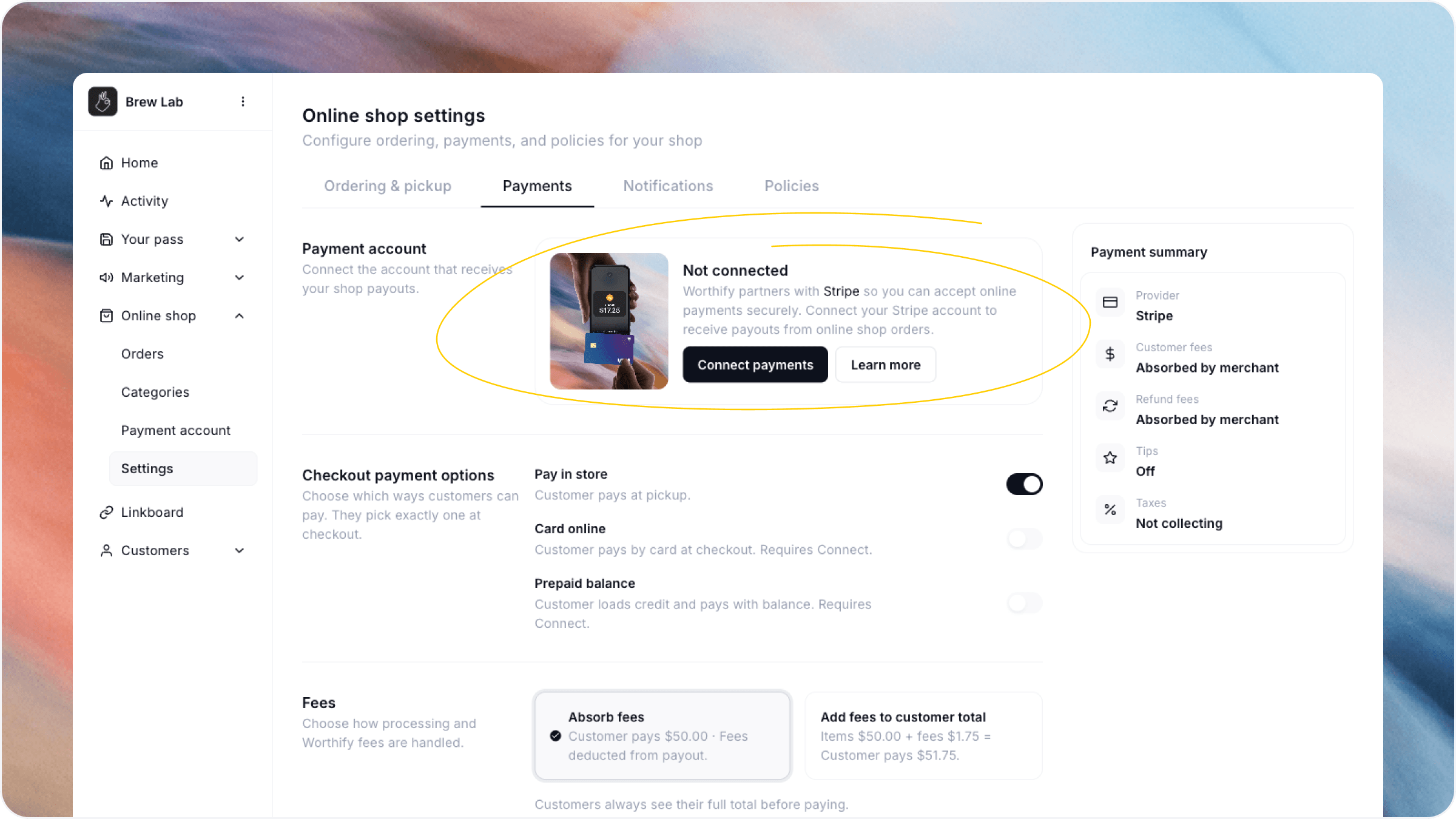
In your merchant dashboard, go to Online Shop → Settings → Payments and start the connection process.
2. Complete your business verification
Follow the prompts to provide the required business information and payout details.
The information requested depends on your business and country. Complete any outstanding requirements to finish verification.
3. Check your account status
Return to Worthify and check your payment account’s status.
If verification is incomplete, follow the prompts to provide any missing information. You can start collecting payments once your account is verified and shows as ready for payments.
4. Choose how customers can pay
Go to Online Shop → Settings → Payments to configure your checkout options.
Customers can:
Pay in store: Place an order and pay at pickup.
Pay by card online: Pay when they check out.
Use prepaid balance: Load credit with your shop and use it at checkout.
Use Pass checkout: Build a cart and present their pass at pickup. You scan it, confirm the order, and charge the card saved on their profile.
You also control your tax, tip, and fee settings, including whether your business absorbs fees or adds them to the customer’s total.
5. Take payments in Worthify Go
Once your payment account is verified, the Charge tab unlocks in Worthify Go.
You can enter an amount or select items from your Online Shop catalog, then collect payment using Tap to Pay or a connected card reader.
Available hardware includes M2 in the US, WisePad 3 in Canada, and the S710 terminal. You can also accept payments using Tap to Pay on a supported device through Worthify Go.
After a successful payment, you can send a receipt by email.
6. Manage payments and payouts
Your Payment account has three tabs:
Payouts: Review your balance, upcoming payout estimate, and payout history.
Payments: Review payment records and details, and issue refunds.
Account: Review and manage your payment account information.
FAQs
Can I set up my Online Shop before enabling payments? Yes. You can create items, publish your shop, and accept orders with Pay in store before connecting your payment account.
Can I collect payments while my account is being verified? Payment collection becomes available after verification. Complete any outstanding requirements shown during setup.
Do I need a card reader? You can use Tap to Pay through Worthify Go on a supported device, or connect a supported card reader.
Who pays the transaction fees? You decide whether your business absorbs the fees or passes them to customers through your payment settings.
Do payments earn rewards points? Yes, when your shop has a rewards program and the payment is associated with the customer’s rewards profile.
Was this helpful?
Still need help? Ask the team