Managing orders
Review incoming orders, track preparation and pickup, and cancel eligible orders from your Orders board.
Overview
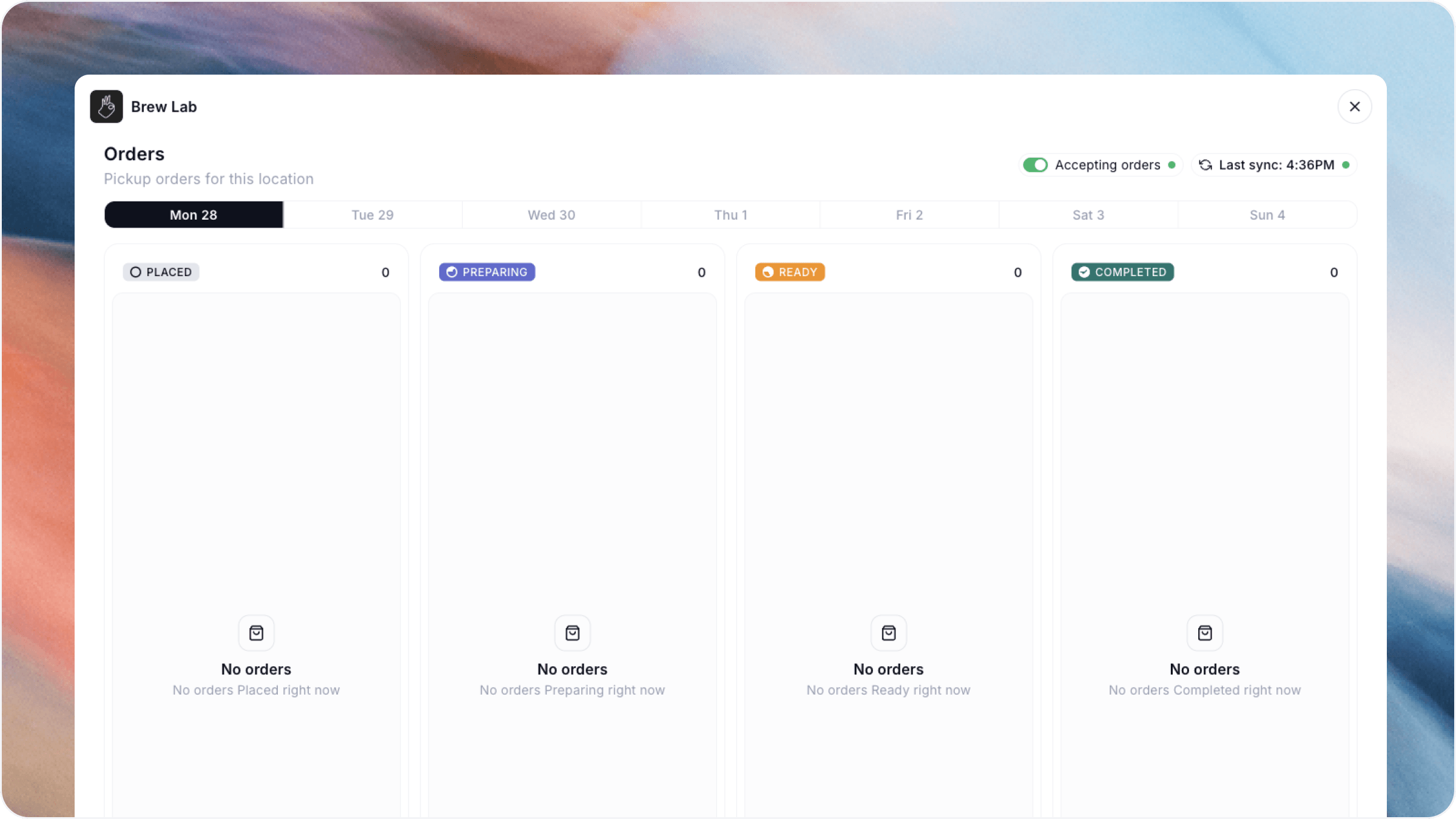
The Orders board is where you manage customer orders from placement through pickup. Review order and payment details, update preparation statuses, and cancel orders before preparation begins. Cancelling a paid order automatically issues a refund.
Open your Orders board
Go to Online shop → Orders in your Worthify dashboard.
The board organizes orders by pickup day and status so your team can see what needs attention.
You can also view and manage orders in Worthify Go.
Review new orders
New orders appear under Placed.
Open an order to review the items, quantities, pickup details, and payment method before you begin preparing it.
Check whether the customer has already paid or whether payment still needs to be collected at pickup.
Update an order’s status
Move each order through the board as your team fulfills it:
Keep statuses current so customers know how their order is progressing.
Before moving an order to Preparing, make sure you can fulfill it. Orders can only be cancelled while they are Placed.
Handle payment at pickup
The order’s payment method determines what you need to do when the customer arrives.
Paid online
Check the payment status before handing over the order to avoid collecting payment twice.
Pay in store
Collect payment when the customer picks up their order.
Pass checkout
Ask the customer to present their pass. Scan it in Worthify Go, review and confirm their order, and complete payment by charging the card saved on their profile.
After pickup and any required payment are complete, mark the order Completed.
Cancel an order
You can cancel an order while it is still Placed.
Open the order.
Select the cancellation option.
Review and confirm the cancellation.
If the customer has already paid, cancelling automatically issues a refund. Your shop’s configured refund-fee settings determine how processing fees are handled.
If the order hasn’t been paid, there is no collected payment to refund.
Once an order moves to Preparing, it can no longer be cancelled.
Pause new orders
If your shop needs to stop accepting new orders, turn off Accepting orders in Online shop → Settings.
Continue managing the orders you’ve already received and keep their statuses up to date.
FAQs
Can I cancel an order that is Preparing or Ready? No. Cancellation is only available while an order is Placed.
Do I need to issue a separate refund when cancelling a paid order? No. Cancelling a paid order automatically issues a refund.
Can customers place orders before I connect my payment account? Yes. Customers can choose Pay in store. Online payments and Pass checkout require a connected and verified payment account.
Was this helpful?
Still need help? Ask the team