Managing online shop ordering settings
Control when customers can order, how they collect their orders, and how much preparation time your shop needs.
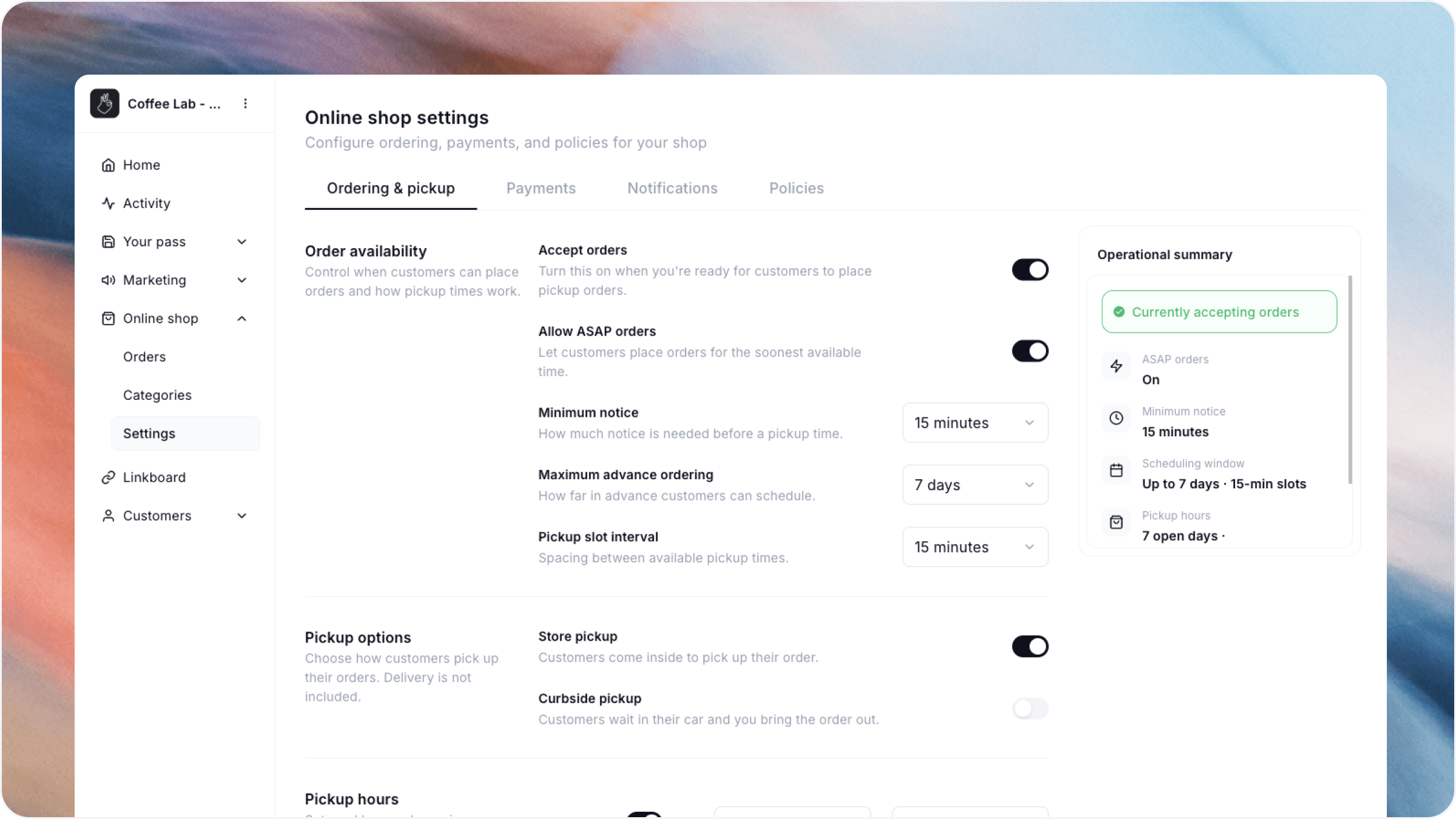
Overview
Your ordering settings help you manage pickup orders around your shop’s hours and capacity.
Go to Online shop → Settings → Ordering & pickup to configure order availability, pickup methods, hours, and limits.
Turn ordering on or off
Use Accept orders to control whether customers can place new pickup orders.
Turn it on when your shop is ready to receive orders. Turn it off when you need to pause new orders, and continue handling orders you’ve already received.
Set order timing
Configure these options under Order availability:
For example, a 15-minute pickup slot interval offers pickup times in 15-minute increments. It does not limit how many orders can use each slot—you can configure that separately under Order limits.
Choose a minimum notice that gives your team enough time to prepare an order.
Choose pickup methods
Under Pickup options, enable the methods your shop offers:
Store pickup: Customers come inside to collect their order.
Curbside pickup: Customers wait in their car while your team brings the order out.
You can offer either method or both. Delivery is not included in these options.
Set pickup hours
Under Pickup hours, configure your weekly schedule in your location’s timezone.
For each day:
Choose whether the day is open for pickup.
Enter the opening and closing times.
Use Add hours if you need more than one pickup period.
For example, you could offer pickup from 9 AM to noon and again from 2 PM to 6 PM.
Set these hours to the times your team can actually hand over orders.
Configure order limits
Use Order limits to manage minimum spending and pickup capacity.
Minimum order
Enable this option to require customers to spend a minimum amount before placing an order.
Limit orders per time slot
Enable this option to cap how many orders can share the same pickup window.
Use the limit to match the number of orders your team can prepare and hand over within each slot.
Review and save
Check the Operational summary for a quick overview of your order acceptance status, ASAP setting, minimum notice, scheduling window, and pickup hours.
Select Save Changes to apply your updates.
Then review your customer-facing shop to check that the available pickup methods and times match your intended setup.
FAQs
Can I pause orders without changing my pickup hours?
Yes. Turn off Accept orders to pause new orders while keeping your configured schedule.
Can I offer separate pickup periods on the same day?
Yes. Use Add hours to create additional periods.
What’s the difference between pickup slot interval and orders per time slot?
The interval controls the spacing between pickup times. The order limit controls how many orders can share each time slot.
Was this helpful?
Still need help? Ask the team