Setting up your online shop
Create your catalog and configure ordering, pickup, and checkout so customers can order from your shop.
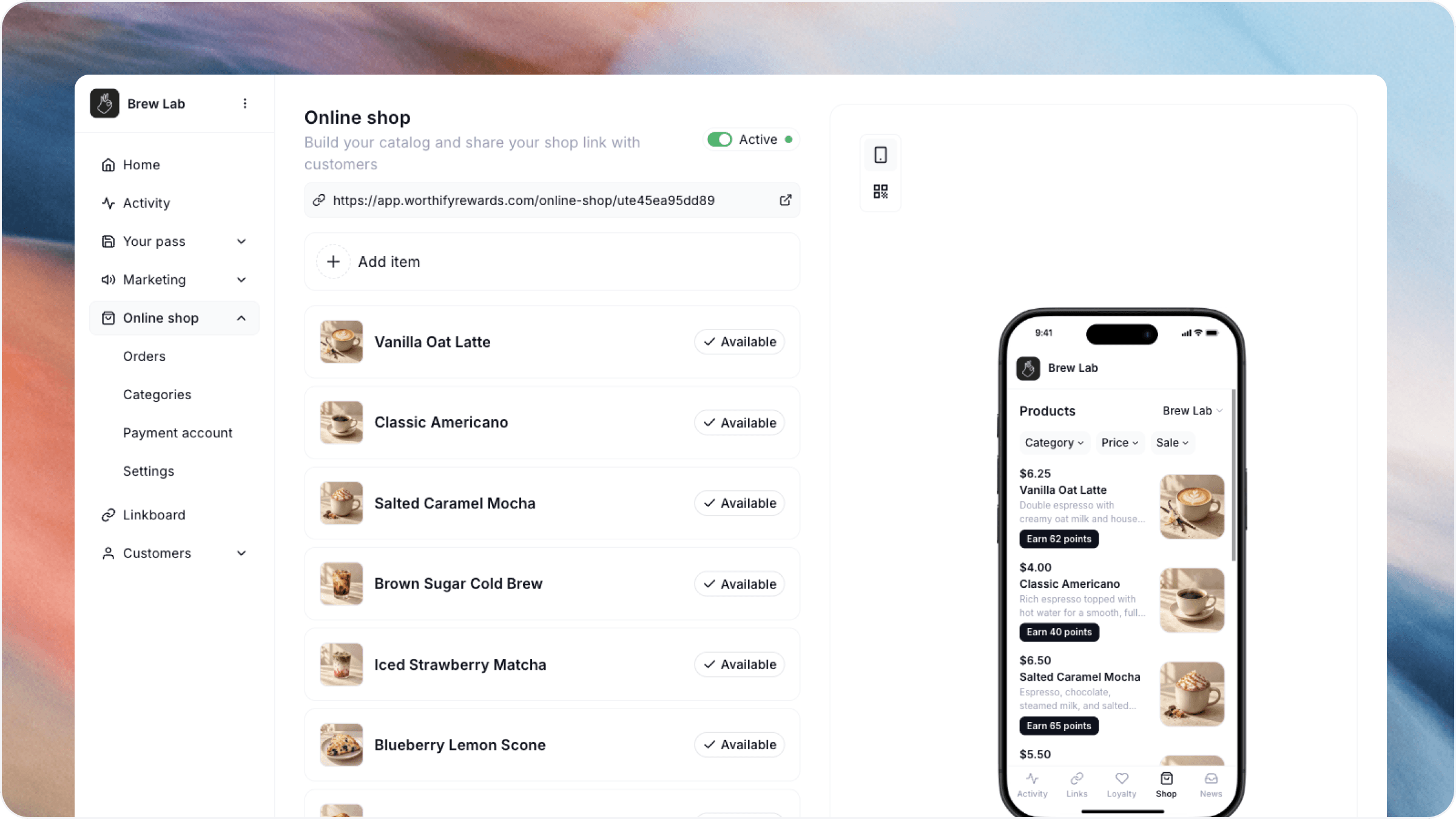
Overview
Set up your shop’s pass and program first. Rewards are optional.
You can create your online shop, make it public, and accept orders before connecting your payment account. Customers can choose Pay in store until online payments are enabled.
Add your shop items
Open Online shop in your Worthify dashboard and create the items you want customers to order.
Give each item a clear name, description, and price. Add photos where available so customers can recognize what they’re buying.
Review your catalog from the customer’s perspective. Make sure the information is accurate and customers can easily understand what each item includes.
Set up ordering and pickup
Go to Online shop → Settings to configure how your shop accepts orders.
Review these settings:
Accepting orders: Control whether customers can place orders.
Order timing: Offer ASAP orders, scheduled orders, or both.
Minimum notice: Set how much time you need before an order can be picked up.
Advance ordering: Set how far ahead customers can schedule an order.
Pickup slots: Choose the interval between available pickup times.
Pickup methods: Offer in-store pickup, curbside pickup, or both.
Pickup hours: Set the hours when customers can collect orders.
Order limits: Configure an optional minimum order amount and limits per pickup slot.
Choose settings your team can consistently fulfill. Pickup hours and preparation time should reflect how your shop actually operates.
Choose how customers pay
Review the available payment options in your shop settings.
Pay in store Customers place an order online and pay when they collect it. This option is available without a connected payment account.
Card online Customers pay by card when placing their order. Your payment account must be connected and verified.
Prepaid balance Customers load a balance with your shop and use that balance to pay at online checkout. Your payment account must be connected and verified.
Pass checkout Customers build their cart and present their pass at pickup. You scan the pass, review and confirm the order, and complete payment by charging the card saved on their profile.
Pass checkout requires a connected and verified payment account. It is separate from prepaid balance.
Review taxes, fees, and tips
In Online shop → Settings, configure the checkout preferences for your shop:
Taxes: Choose whether to charge sales tax and enter the applicable tax names and percentage rates.
Fees: Choose whether your shop absorbs payment fees or passes them to customers.
Refund fees: Review who covers processing fees when an order is refunded or cancelled.
Tips: Enable tips and configure suggested amounts and a custom-tip option.
Check these settings before accepting your first orders so the customer’s checkout total reflects your choices.
Make your shop public
When your catalog and settings are ready, make your online shop public.
Open the customer-facing shop and review:
Item names, descriptions, photos, and prices.
Available pickup methods and times.
Payment options.
Taxes, fees, and tips shown at checkout.
Once you’re ready to receive orders, make sure Accepting orders is enabled. Incoming orders appear on your Orders board.
FAQs
Do I need a connected payment account to launch my online shop? No. You can publish your catalog and accept orders with Pay in store. Connect and verify your payment account to enable online payments and Pass checkout.
Do I have to offer rewards? No. Your online shop can operate with or without rewards.
Can I pause orders? Yes. Use the Accepting orders setting to control whether customers can place new orders.
Was this helpful?
Still need help? Ask the team