Managing checkout settings
Choose how customers pay and configure taxes, tips, and fees for your online shop.
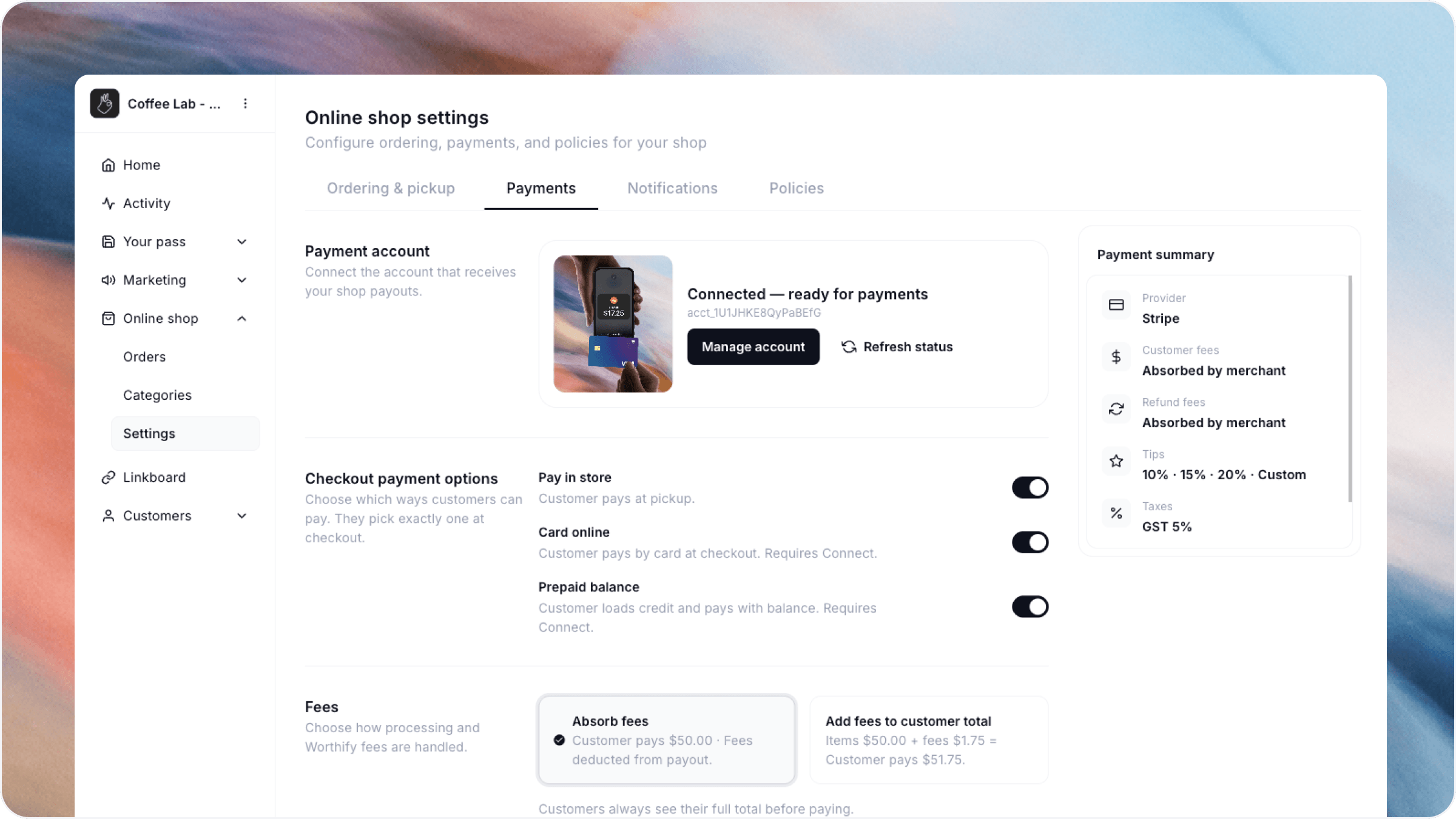
Overview
Your checkout settings control the payment options customers see and how their order total is calculated. Manage these preferences from Online shop → Settings in your Worthify dashboard.
Review your settings whenever you change how your shop accepts payments, charges taxes, or handles fees.
Choose payment methods
Enable the available payment methods you want to offer customers.
Pay in store Customers place their order online and pay when they collect it. You can offer this without a connected payment account.
Card online Customers pay by card when placing their order. Your payment account must be connected and verified.
Prepaid balance Customers use a balance they’ve loaded with your shop to pay at checkout. Your payment account must be connected and verified.
Pass checkout Customers build their cart and present their pass at pickup. You scan the pass in Worthify Go, review and confirm the order, and charge the card saved on their profile.
Pass checkout requires a connected and verified payment account. It is separate from prepaid balance.
Configure sales tax
Choose whether your shop charges sales tax.
When enabled, enter the applicable tax names and percentage rates. Review the customer-facing checkout to confirm the taxes appear as expected.
Choose who covers payment fees
You decide whether your shop:
Absorbs fees: Your business covers the payment fees.
Passes fees to customers: Fees are added to the customer’s checkout total.
Review the checkout total after changing this setting so you understand what customers will pay.
Review refund-fee preferences
Configure who covers processing fees when an order is refunded or cancelled.
This setting controls fee treatment. If you cancel an order that has already been paid, Worthify automatically issues a refund.
Orders can only be cancelled while they are Placed, before moving to Preparing.
Configure tips
Choose whether to offer tipping at checkout.
If you enable tips, configure the suggested amounts and whether customers can enter a custom tip.
Review the available choices from the customer’s perspective before accepting orders.
Check the customer experience
After saving your changes, open your online shop and review checkout.
Confirm that:
Your intended payment methods are available.
Taxes use the correct names and rates.
Fees reflect your chosen preference.
Tip options appear as intended.
The final total is clear.
FAQs
Can I accept orders without enabling online payments? Yes. Offer Pay in store so customers can order online and pay at pickup.
Are prepaid balance and Pass checkout the same? No. Prepaid balance pays for the order using shop credit at online checkout. Pass checkout charges the customer’s saved card after you scan their pass and confirm the order at pickup.
Where do I issue a refund? Open the payment in Payment account → Payments and select Begin refund. Cancelling an eligible paid order issues its refund automatically.
Was this helpful?
Still need help? Ask the team