Taking payments with Worthify Go
Charge a custom amount or select catalog items, accept payment, and email a receipt from Worthify Go.
Overview
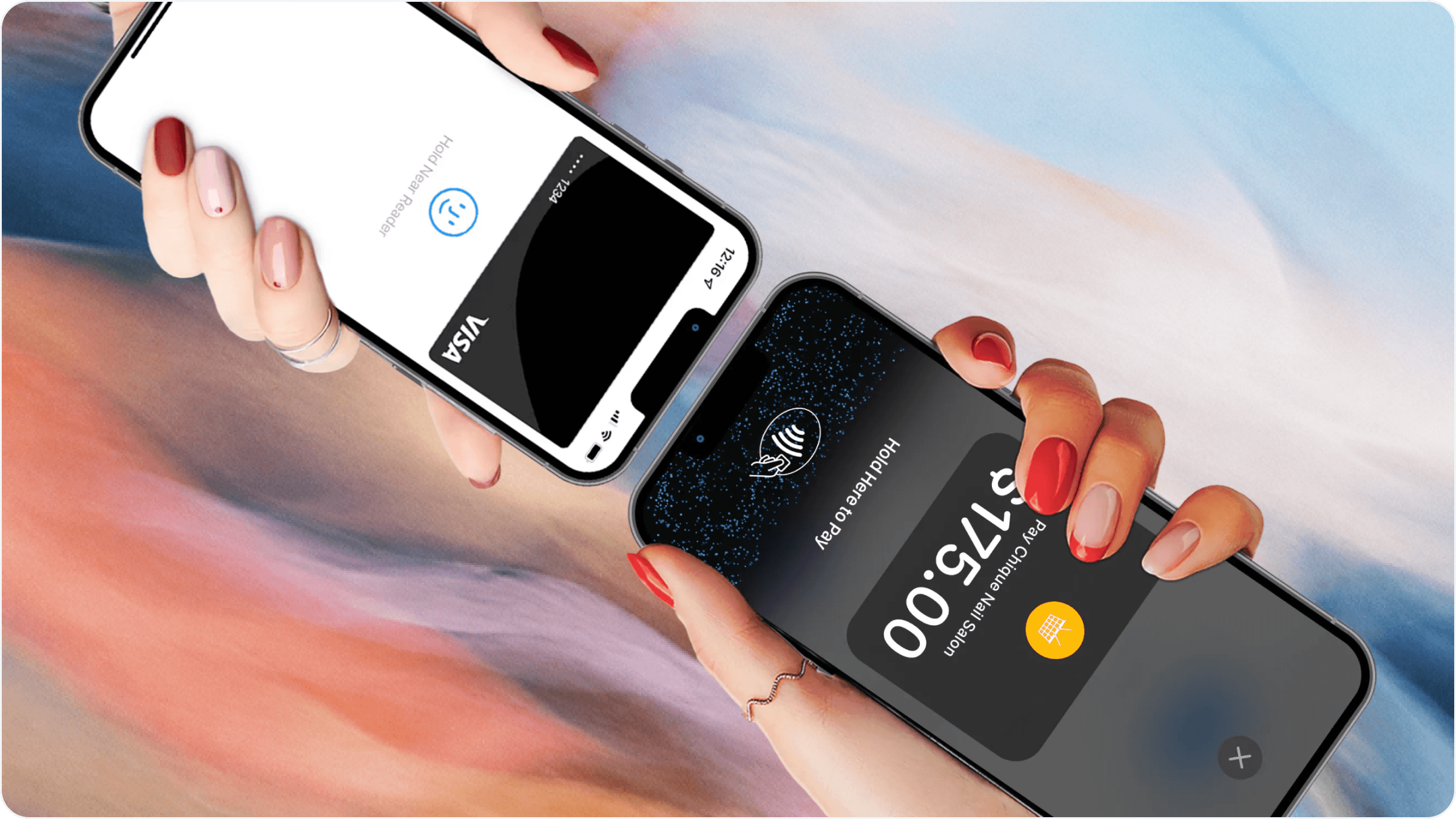
The Charge tab in Worthify Go lets you collect in-person payments using Tap to Pay, a connected card reader, or a supported terminal.
You can enter an amount directly or build a charge using items from your Online Shop catalog.
Before you start
Make sure:
Your shop’s payment account is connected and verified.
You’re signed in to Worthify Go with access to payments.
Your device has an active internet connection.
Tap to Pay or your payment hardware is connected and ready.
The Charge tab becomes available once your payment account is verified.
Create a charge
Open Charge in Worthify Go and choose how to enter the sale.
Enter a custom amount
Enter the amount you want to collect.
Use this option when you don’t need to select individual catalog items.
Select catalog items
Choose the items the customer is purchasing from your Online Shop catalog.
Review the selected items, quantities, and prices before continuing.
Collect payment
Review the amount to be charged.
Start payment using your configured payment option.
Ask the customer to follow the prompts on the device or reader.
Wait for Worthify Go to confirm that payment succeeded.
Check the payment result before handing over the purchase or starting another charge.
Send a receipt
After a successful payment, use the email receipt option and enter the recipient’s email address.
Confirm the address with the customer before sending.
Review or refund a payment
Go to Online shop → Payment account → Payments in your dashboard to find the payment and review its details.
To issue a refund, open the payment and select Begin refund, then follow the prompts.
FAQs
Why can’t I see the Charge tab? Your shop’s payment account must be connected and verified before payment collection becomes available.
Do I need to create catalog items first? No. You can enter a custom amount. Catalog items are useful when you want to select the products being purchased.
Which payment devices can I use? You can use Tap to Pay on a supported device, an M2 reader in the US, a WisePad 3 reader in Canada, or an S710 terminal running Worthify Go.
What if payment doesn’t succeed? Review the result shown in Worthify Go. Confirm whether payment was collected before trying again. If it failed, ask the customer to retry or use another payment method.
Was this helpful?
Still need help? Ask the team