Managing your shop catalog
Keep your online shop up to date with the items, prices, and availability customers can order.
What is your shop catalog?
Your catalog contains the items you sell through your Online Shop. Customers browse these items when building an order.
The same catalog is also available in Worthify Go’s Charge tab, so you can select items when taking an in-person payment.
Add an item
Open Online shop in your Worthify dashboard and use the option to add an item.
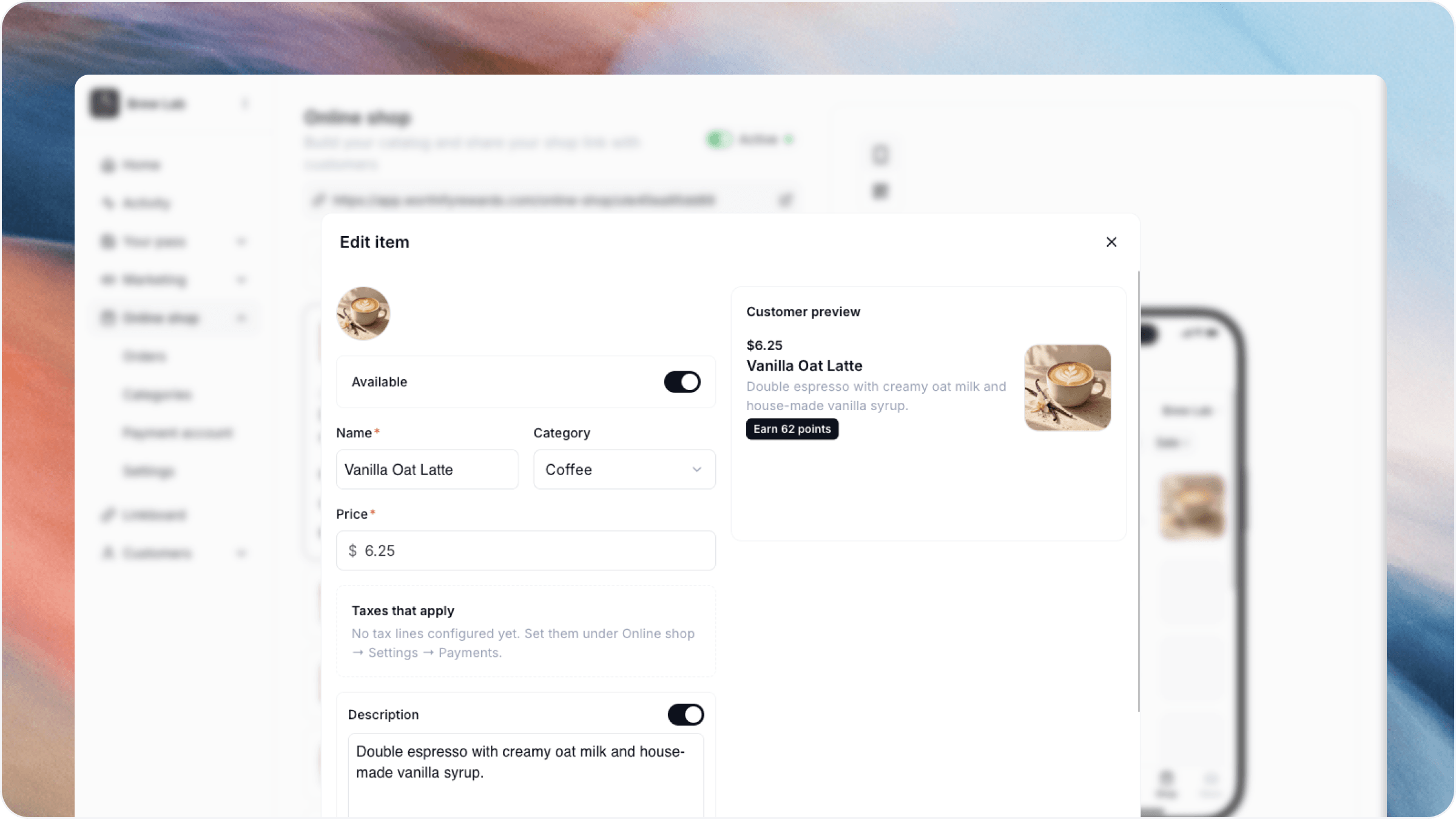
Enter the item’s name, price, and description, and add a photo where available. Before saving, check that customers can clearly understand what they’re buying.
Use descriptions to explain details that affect their choice, such as size, quantity, or what’s included.
Edit an item
Open an existing item to update its details.
Review your catalog whenever you change prices, introduce products, or adjust what you sell. Keep names and descriptions consistent so customers and your team can recognize the same items online and in Worthify Go.
Save your changes, then review the item in your customer-facing shop.
Keep availability current
Update item availability when something sells out or is temporarily unavailable. Remove items you no longer sell.
Check availability before opening for orders, especially if your selection changes daily.
To pause all new orders, use Accepting orders in Online shop → Settings.
Review the customer experience
After updating your catalog, open your public shop and check that:
Item names and descriptions are clear.
Prices are correct.
Photos match the items.
Customers can order only what your shop can fulfill.
FAQs
Do I need a connected payment account to manage my catalog? No. You can create and publish your catalog before connecting your payment account. Customers can place orders using Pay in store.
Can I use catalog items for in-person payments? Yes. Once your payment account is connected and verified, you can select catalog items from the Charge tab in Worthify Go.
Was this helpful?
Still need help? Ask the team